Features & Specs
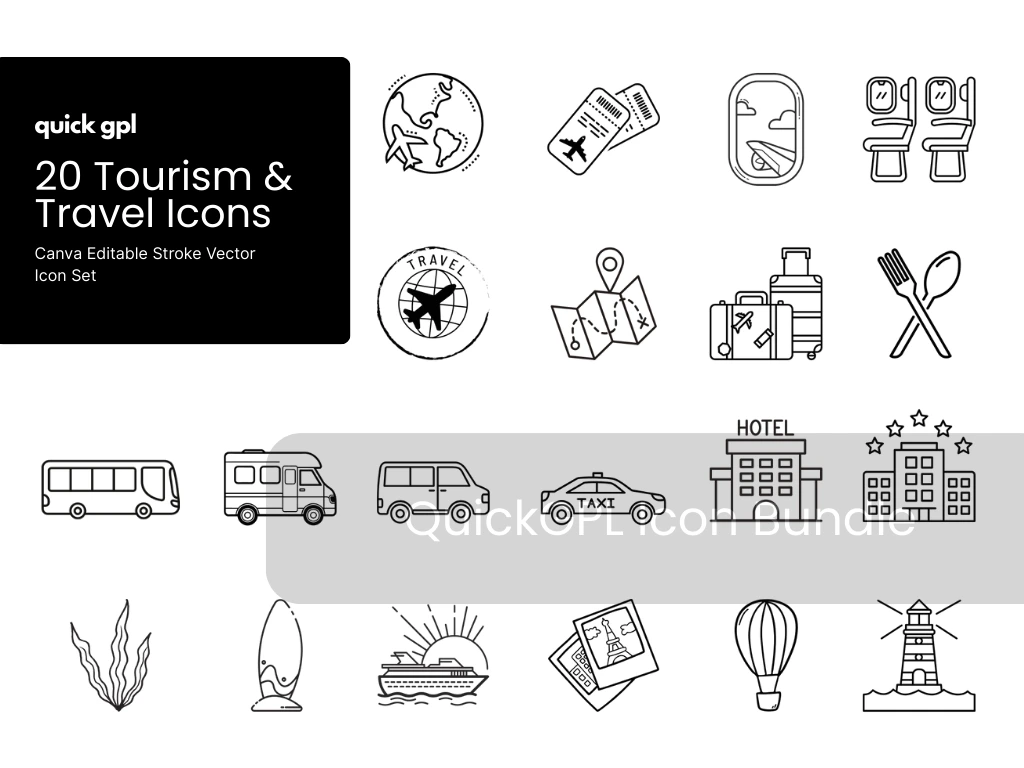
Discover the Tourism & Travel Icon Bundle from QuickGPL, a collection of 20 professionally designed Canva icons that capture the essence of travel and adventure. Inside, you’ll find airplane seats, tickets, hot air balloons, camper vans, maps, marine life, hotels, buses, taxis, and more — all crafted to make your projects stand out.
These icons are perfect for travel websites, booking apps, tourism agencies, tour brochures, blogs, and promotional graphics. Fully editable in Canva, PSD, and AI, with scalable sizes and customizable colors, they adapt seamlessly to your design style.
Common Questions (FAQ)
What icons are included in this travel bundle?
This set includes 20 tourism & travel icons such as airplane, airplane seat, travel ticket, travel stamp, plane window view, car, bus, taxi, surfing boat, dining, marine life, 5-star hotel, map, luggage bags, hot air balloon, travel image, sea watch tour, travel camper van, and more — all fully editable in Canva, PSD, and AI.
Do I need Photoshop or Illustrator to use these icons?
Not at all! This bundle is fully Canva-editable, so you can easily customize icons without any advanced design software. PSD and AI files are included for professionals, but Canva makes it beginner-friendly.
Do they work with WordPress and Shopify?
Yes, since these are image-based, you can upload them into any CMS like WordPress, Shopify, Wix, or Squarespace.
Can I change the colors of the icons?
Yes! All icons are 100% vector and editable, so you can change colors, resize, or adjust strokes without losing quality.
What size are the icons?
Each PNG is 300×300 pixels, making them perfect for web and print. Since they are vectors, you can scale them infinitely without losing clarity.
Can I use these icons on my website?
Absolutely. These icons are ideal for websites, apps, booking platforms, and even social media graphics. You can upload PNGs directly or use vector files for custom integration.
Are these icons suitable for non-designers?
Yes ✅ That’s why we created a Canva bundle. Anyone—even without design experience—can edit and customize these icons in just a few clicks.
Can I use Canva icons in Photoshop?
Yes! To use your Canva icons in Photoshop:
-
Open your Canva design.
-
Click Share → Download.
-
Select SVG (vector) or PNG (high-res raster).
-
Open the exported file in Photoshop. SVG allows vector editing; PNG is good for standard resizing.
How do I use Canva icons in Illustrator?
-
Download your icons from Canva as SVG.
-
Open Adobe Illustrator and go to File → Open → Select SVG.
-
You can now edit shapes, strokes, colors, and sizes without losing quality.
Can I use Canva icons in Figma?
Yes!
-
Export icons from Canva as SVG.
-
Drag and drop the SVG file into Figma.
-
Edit colors, size, and stroke directly in Figma while keeping them vector.
What if I only have PNG from Canva?
PNG files can be used in Photoshop, Illustrator, Figma, or websites, but:
-
They are raster images → cannot edit strokes or shapes individually.
-
Best for web, apps, presentations, and static designs.
Can I change the color and size of Canva icons in other tools?
-
SVG vector files → fully editable: change stroke, color, and size.
-
PNG files → size can be adjusted but color editing is limited unless you use Photoshop masking or filters.
Why include SVG format for icon bundles?
Including SVG ensures full compatibility with Photoshop, Illustrator, Figma, and other design tools. It also guarantees your icons remain crisp and scalable for websites, apps, and print.