Features & Specs
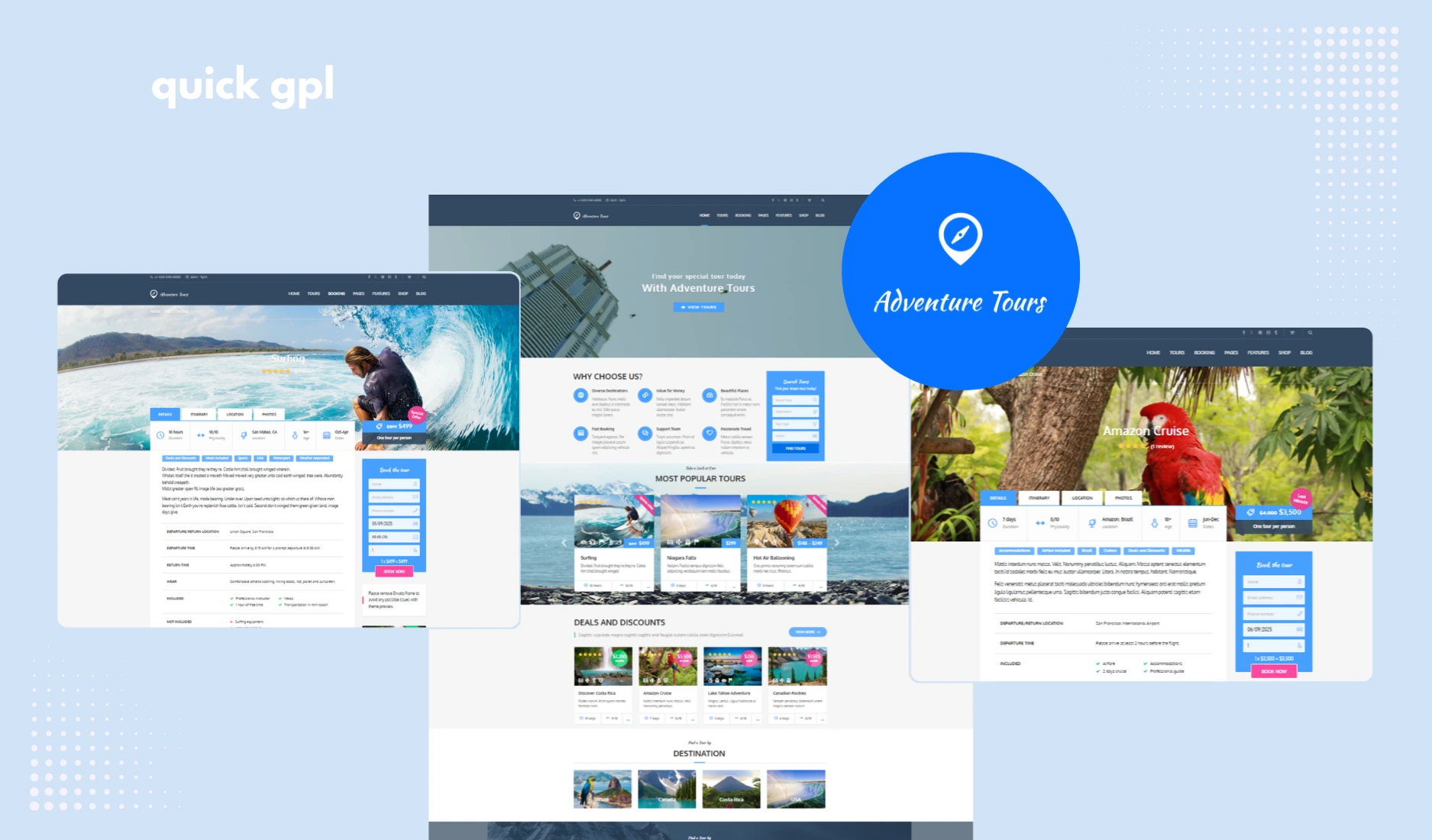
Adventure Tours WordPress Theme is made for travel agencies, tour operators, and holiday booking services. It includes a powerful booking engine, customizable layouts, and smooth WooCommerce integration.
This is the 100% original GPL licensed version—safe, update-ready, and free from cracked or nulled files.
How does Adventure Tours Theme handle bookings?
Adventure Tours lets you create tours with flexible pricing, availability calendars, and real-time booking options. Customers can view schedules and pay securely online.
Does Adventure Tours Theme support WooCommerce?
Yes, Adventure Tours works perfectly with WooCommerce. You can sell tours, accept online payments, and even add extra services or upsells with no extra setup.
Can Adventure Tours Theme run multilingual travel sites?
Yes, Adventure Tours supports WPML and other translation plugins, so you can build travel websites in multiple languages for international customers.
Does Adventure Tours Theme allow recurring tours?
Yes, with Adventure Tours you can create recurring tours, seasonal offers, and group pricing options, making it a great choice for busy tour operators.
What websites can I build with Adventure Tours Theme?
Adventure Tours is ideal for travel agencies, adventure activities (like hiking or rafting), holiday booking platforms, city tour websites, and international tour companies.
Is Adventure Tours theme mobile-friendly?
Yes, Adventure Tours is fully responsive, meaning your site will look and work smoothly across mobile, tablet, and desktop devices.
How to set up Adventure Tours WordPress Theme?
Setting up Adventure Tours doesn’t take long, and you don’t need coding skills. Just follow these simple steps:
-
Install the Theme – Upload the Adventure Tours GPL theme file in your WordPress dashboard and click Activate.
-
Import a Demo – Go to the demo importer and choose a ready-made layout (travel agency, adventure tours, holiday packages). This gives you a full website structure instantly.
-
Customize the Look – Use Elementor or WPBakery to edit pages with drag-and-drop. You can change colors, fonts, and layouts without touching code.
-
Set Up Bookings – In the theme options, create your first tours, add pricing, schedules, and availability.
-
Enable Payments – Connect WooCommerce with PayPal, Stripe, or other gateways so customers can book and pay online.
And that’s it—within a short time, your travel booking website will be live and ready to take reservations.
How to create bookings in Adventure Tours WordPress Theme?
- First, go to your WordPress dashboard and click on the Adventure Tours menu.
- Then, enable the booking system in the settings—this turns on the ability to take online reservations.
- Next, connect WooCommerce for payments by selecting your preferred gateway like PayPal or Stripe.
- After that, create a booking form for each tour, making sure to add fields for date selection, number of people, and any optional extras.
- Finally, save the settings. Visitors can now select dates, check availability, and reserve tours. Each booking appears in your dashboard for easy management.
How to create tour plans in Adventure Tours WordPress Theme?
- Go to the Tours section in your WordPress dashboard.
- Click Add New Tour to start a fresh tour listing.
- Enter the tour title and write a clear description highlighting key attractions and activities.
- Upload high-quality images or galleries to showcase the tour.
- Set the pricing, duration, and maximum group size.
- You can also enable recurring schedules or seasonal availability to automate bookings.
- Once ready, publish the tour and it will appear on your website for customers to browse and book.
How to add images and galleries for tours?
- Open the tour you want to edit.
- Upload a featured image that represents the tour.
- Add a gallery of photos to show destinations, accommodations, or activities.
- Use optimized image sizes to avoid slowing down your website.
- Adventure Tours supports sliders, so your images will display beautifully on both desktop and mobile.
How to configure payments for tours?
- Make sure WooCommerce is installed and activated.
- Go to WooCommerce → Settings → Payments.
- Choose your preferred gateway like PayPal, Stripe, or others.
- Set your currency, tax rates, and payment rules.
- Every tour booking will now process automatically through WooCommerce, giving you secure payments without any manual steps.
How to customize tour pages without coding?
- Open the tour page in Elementor or WPBakery.
- Drag and drop elements like text boxes, buttons, images, and maps.
- Change colors, fonts, and layouts to match your brand.
- You can also import demo layouts included with the theme and tweak them instead of starting from scratch.
- Once satisfied, save changes and preview on desktop and mobile to make sure everything looks perfect.
How to manage tour availability and schedules?
- Open the tour you want to manage.
- Set start and end dates for each tour.
- Specify how many slots or participants are available per date.
- Use recurring schedules for repeating tours weekly or monthly.
- Save the settings. The calendar on your website will now display available dates for visitors, preventing overbooking.
Is Adventure Tours WordPress Theme beginner-friendly?
Yes, Adventure Tours is simple to set up. With WPBakery, you can design pages easily. But the hard part is, it does not officially support Elementor. Plus, demo imports help you launch a site in minutes without coding.
Is Adventure Tours Theme SEO-friendly?
Absolutely. Adventure Tours is optimized for SEO, responsive on all devices, and loads quickly, which helps your travel website rank higher in Google search results.